We will guide you through the process of creating a group request for multiple employees at once.
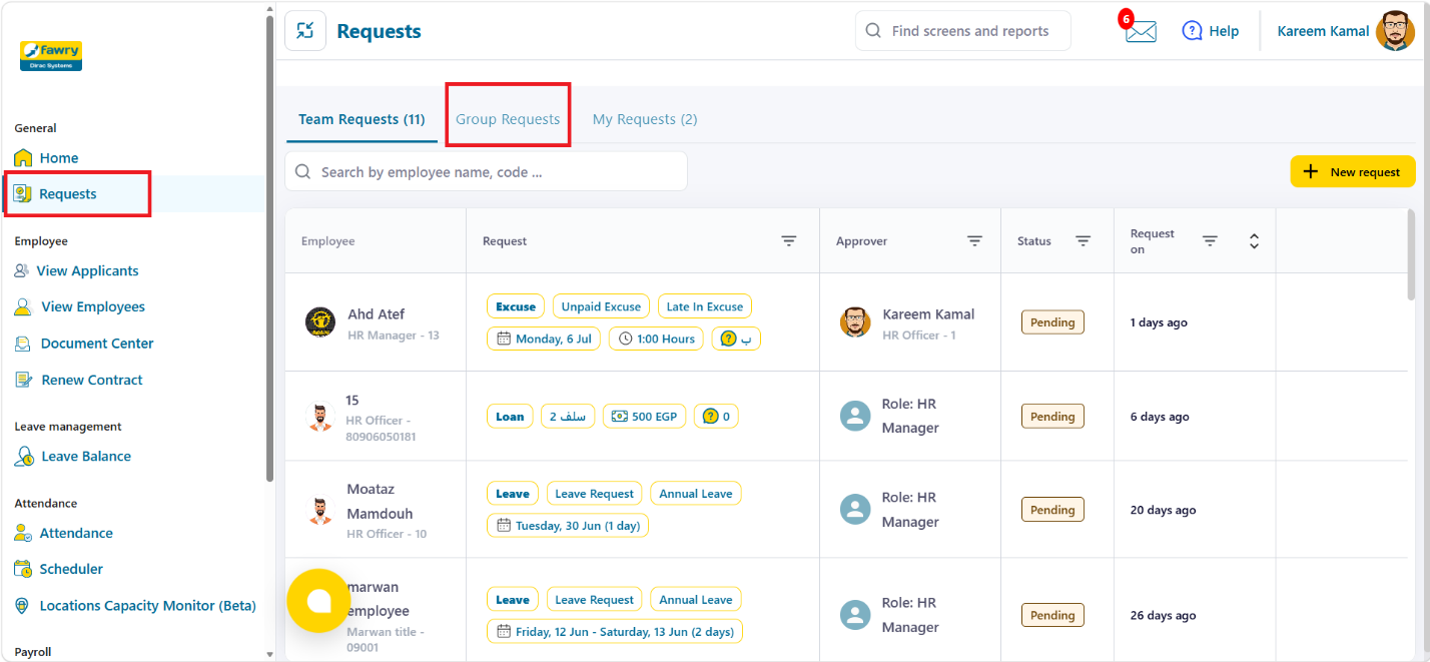
Step 1: Navigate to group requests…
From the main menu, go to requests then select group requests.
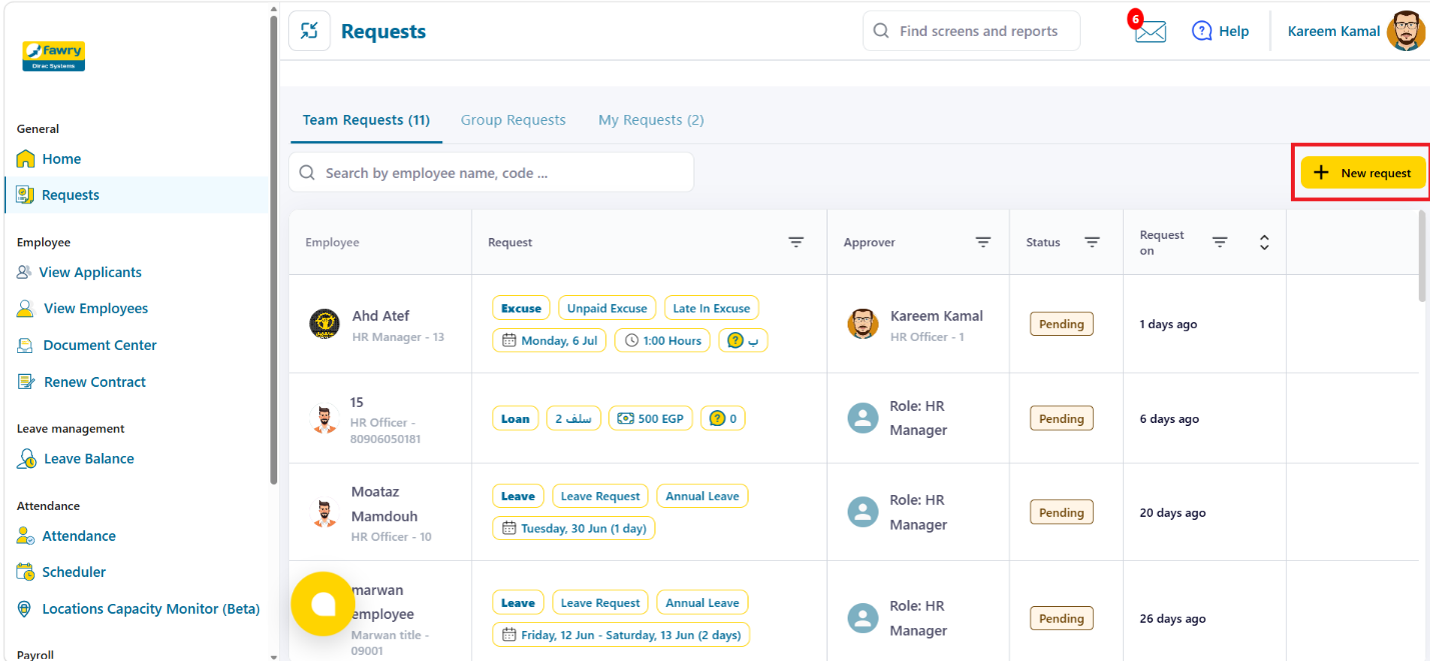
 Step 2: create a new group request…
Click the new request button to create a new group request.
 Step 3: select the request information...
Select the employees who will be included in the request.
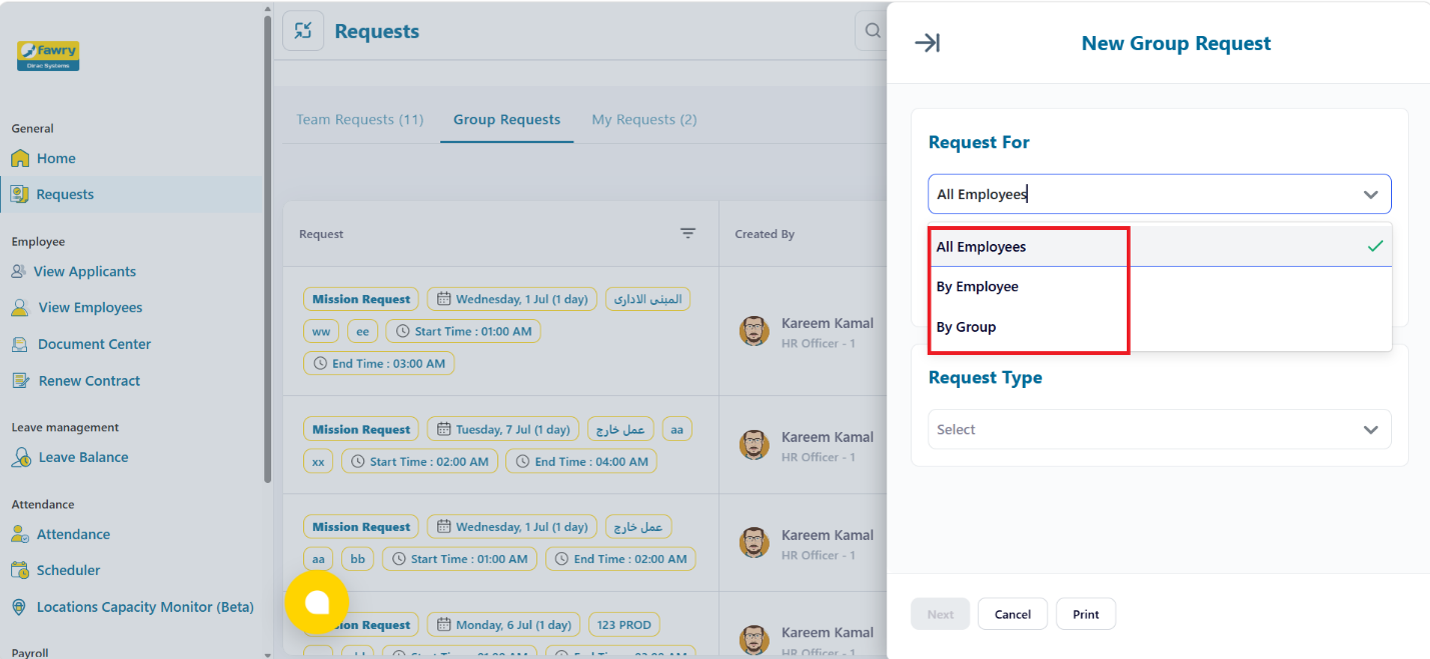
The Request For field, allows you to choose who will be included in the request. You can select one of the following options.:
All employees - By group - or By employee
 All Employees…
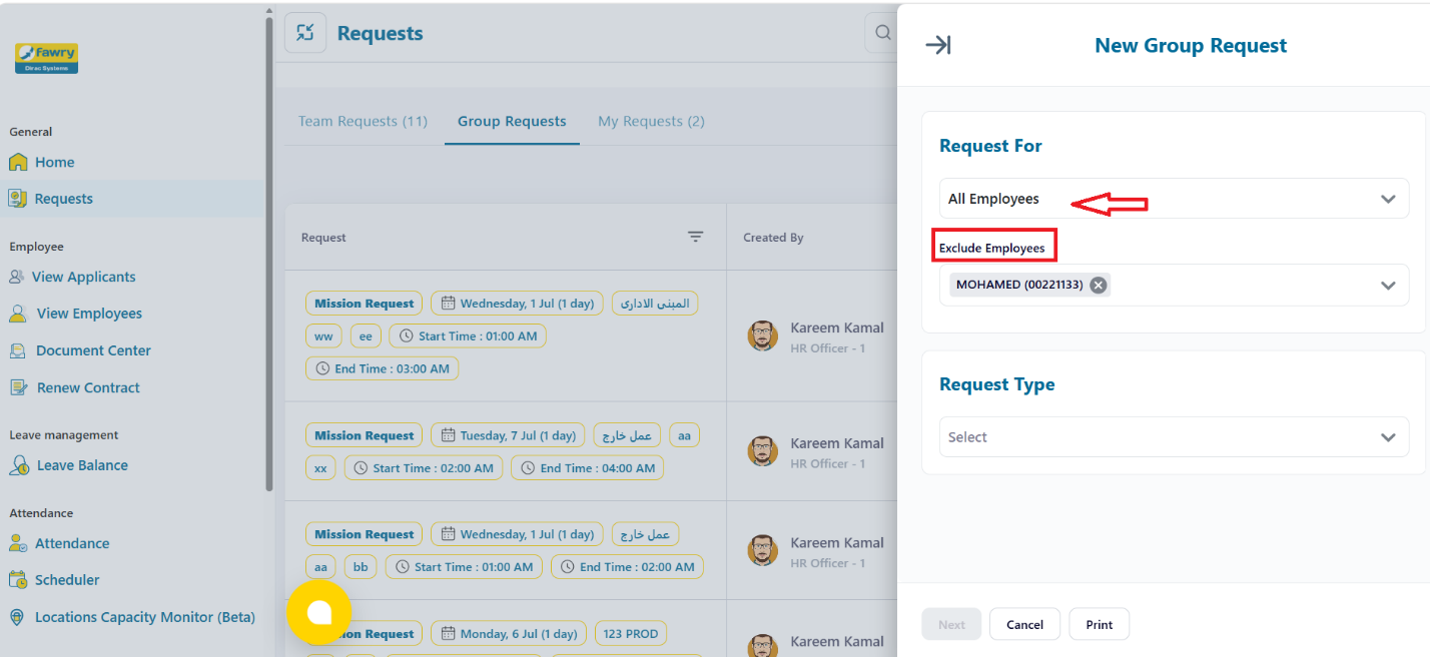
Select All Employees to include all company’s employees within the request.
an additional field, Exclude Employees, will appear allowing you to exclude specific employees from the group request.
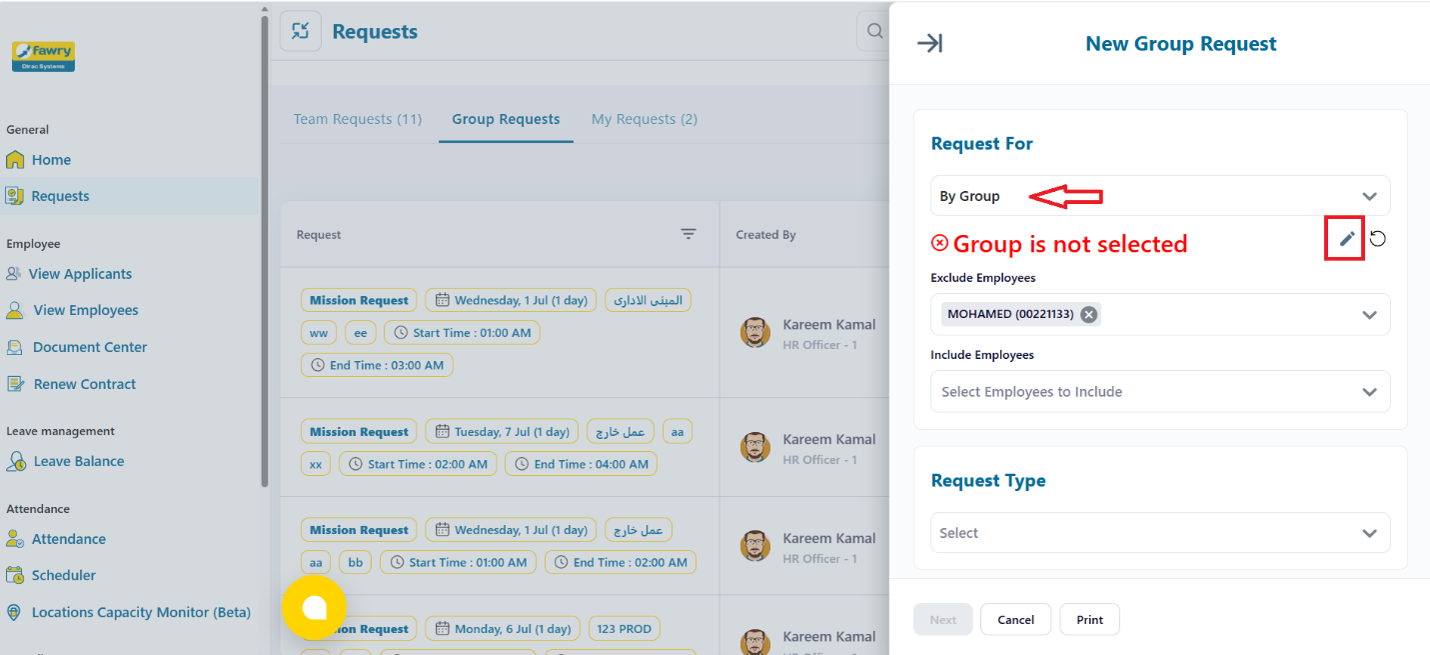
 By Group…
Select By Group, then click the edit icon to modify the required group.
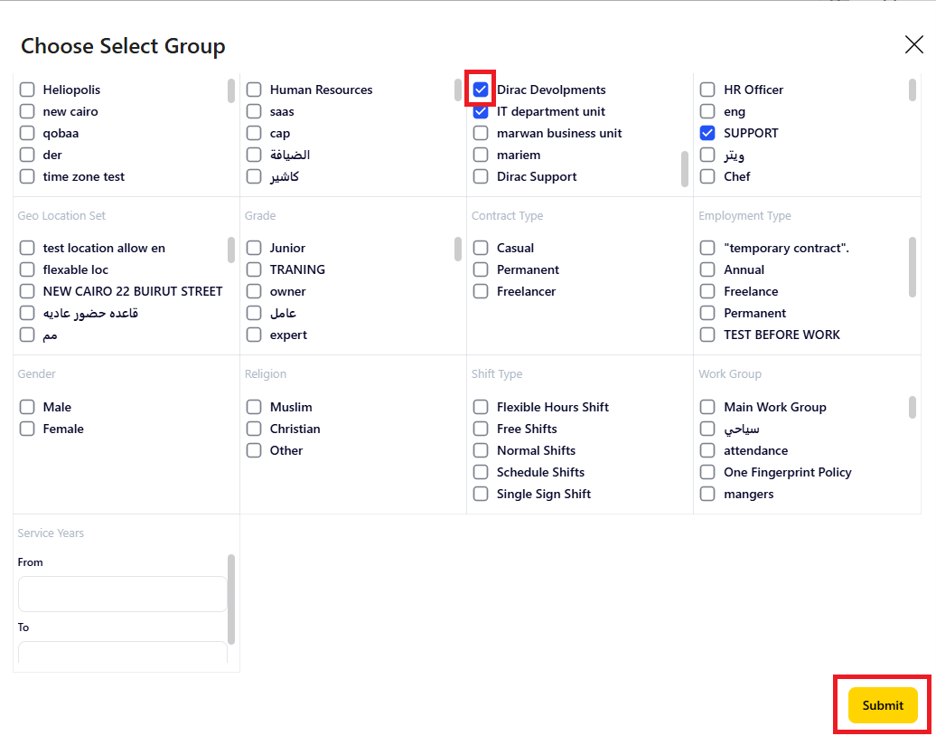
 The choose group screen will open, displaying the available sections to create required group.
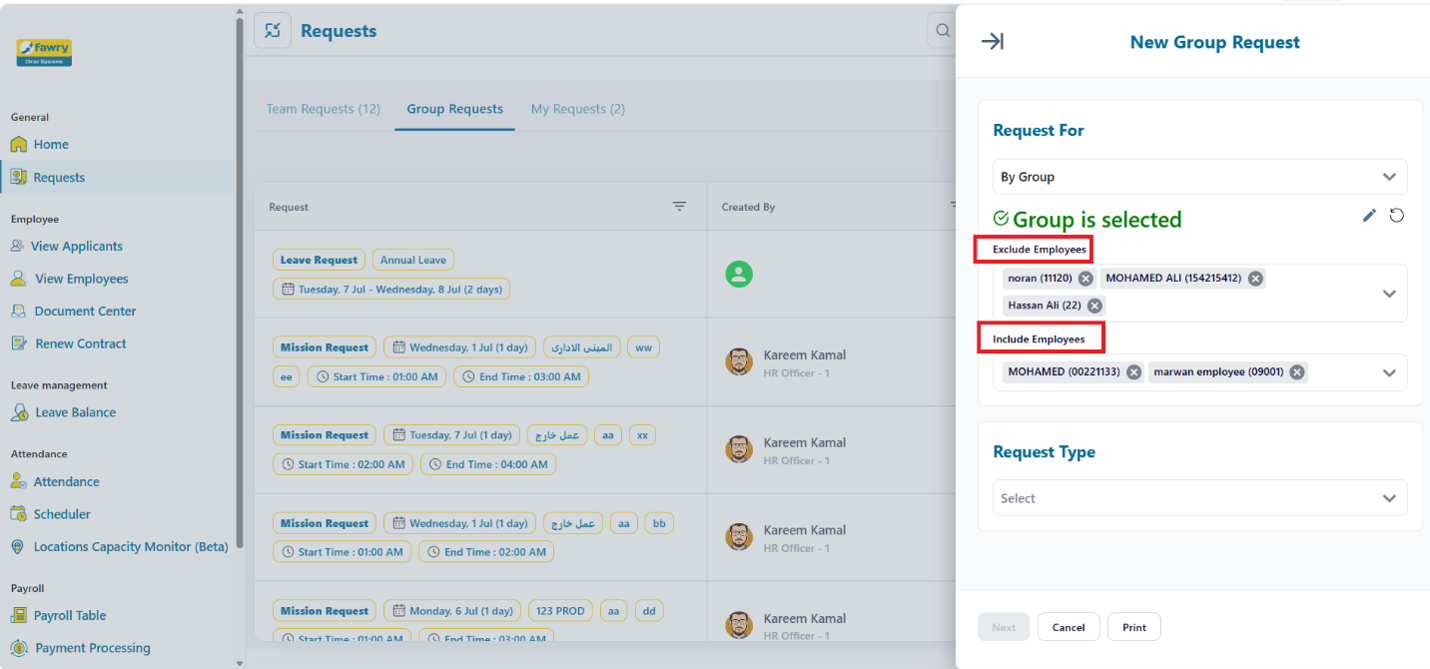
After selecting the group,
 the following fields will be available:
Exclude Employees, allow you to exclude specific employees from the selected group.
Include Employees, allow you to add specific employees outside of the selected group to the request.
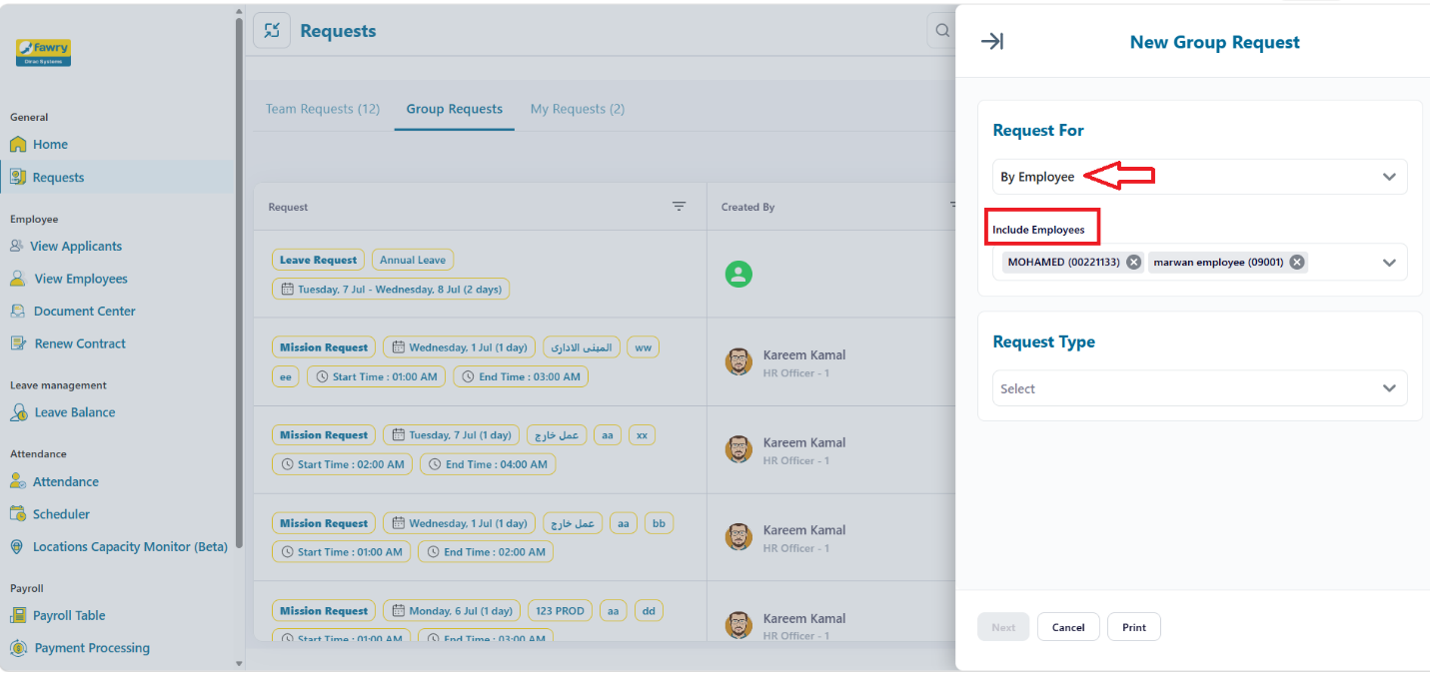
 By Employee…
Select By Employee to display the include employees’ field, you can search for the required employee by name or employee code, then multi select the employees to include them in the request.
 Next, Request Type;
This field allows you to choose one of five available requests you want to submit.
Available requests are ...
leave request; excuse request; mission request; work from home request and. leave encashment request.
Note: To make these request types available in the Request Type field, they must be enabled first. For more information about this step, refer to the Activate Request Type section.
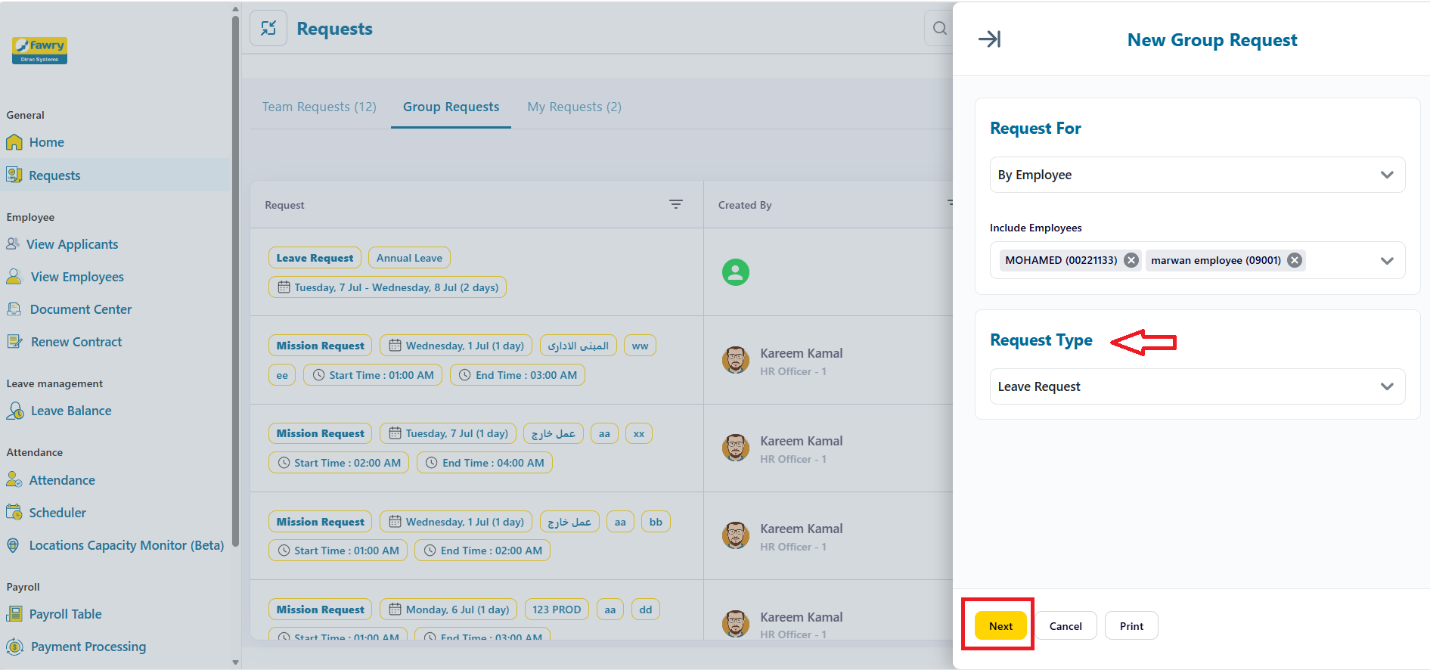
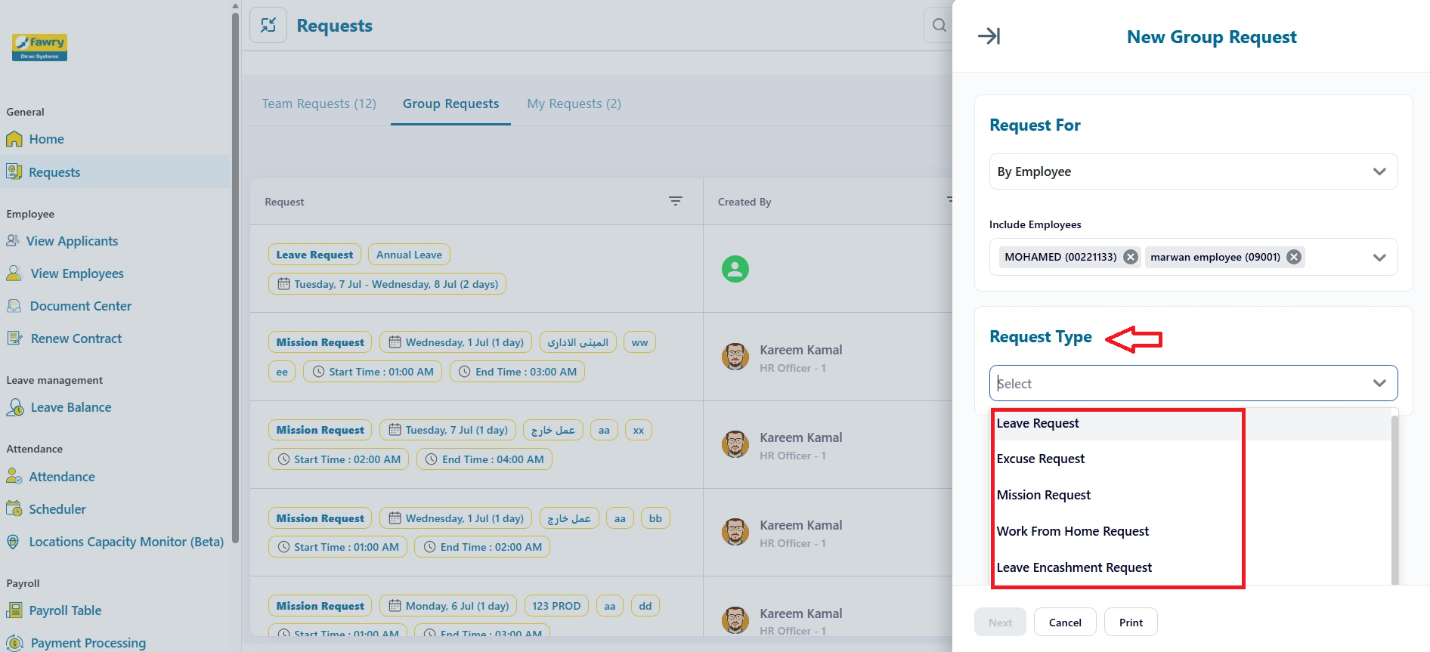 Select required request type, click next to proceed to the request details screen…
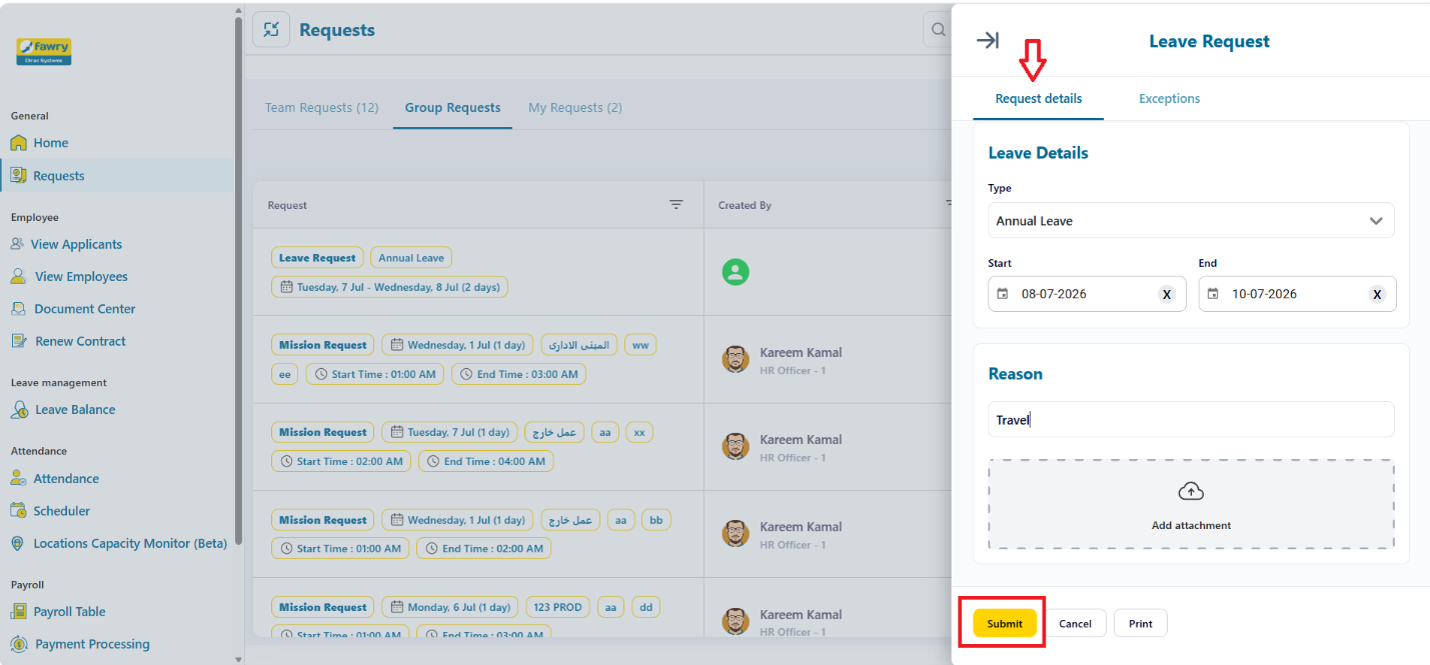
 Step 4 enter request details…
Fill in the required information related to the selected request type and click submit to proceed.
 Step 5 Validations …
The system will validate the submitted request for all selected employees and display the exceptions screen, showing validation violations of each employee under Exceptions section.
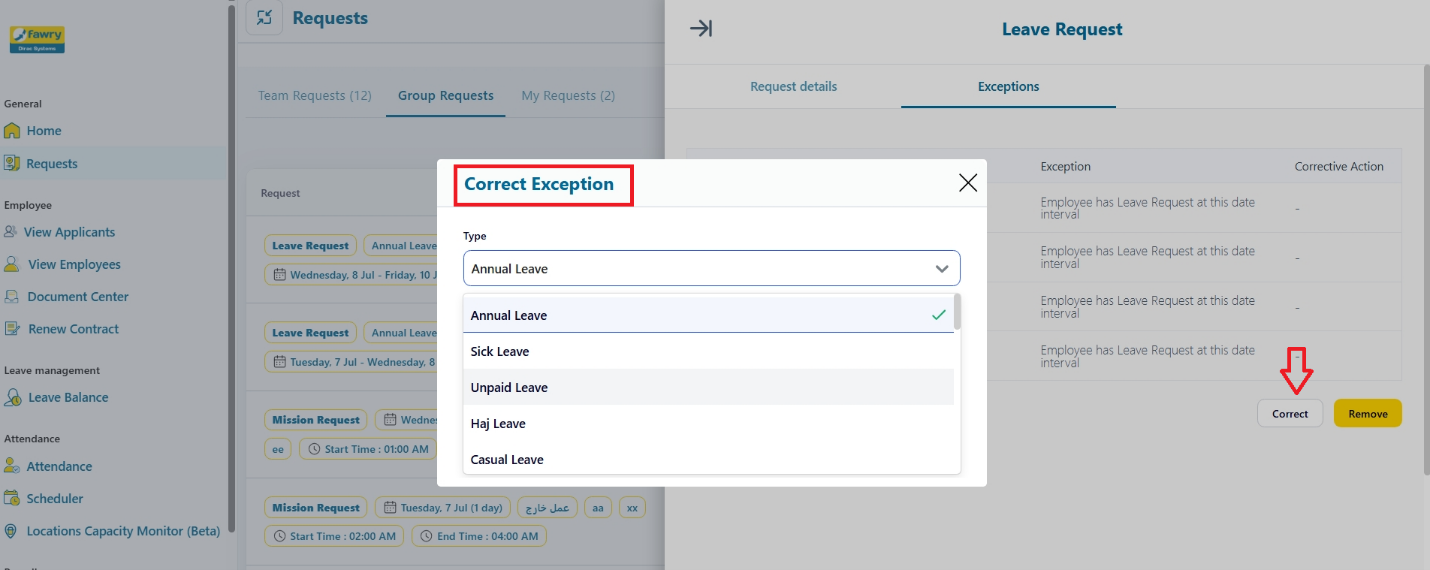
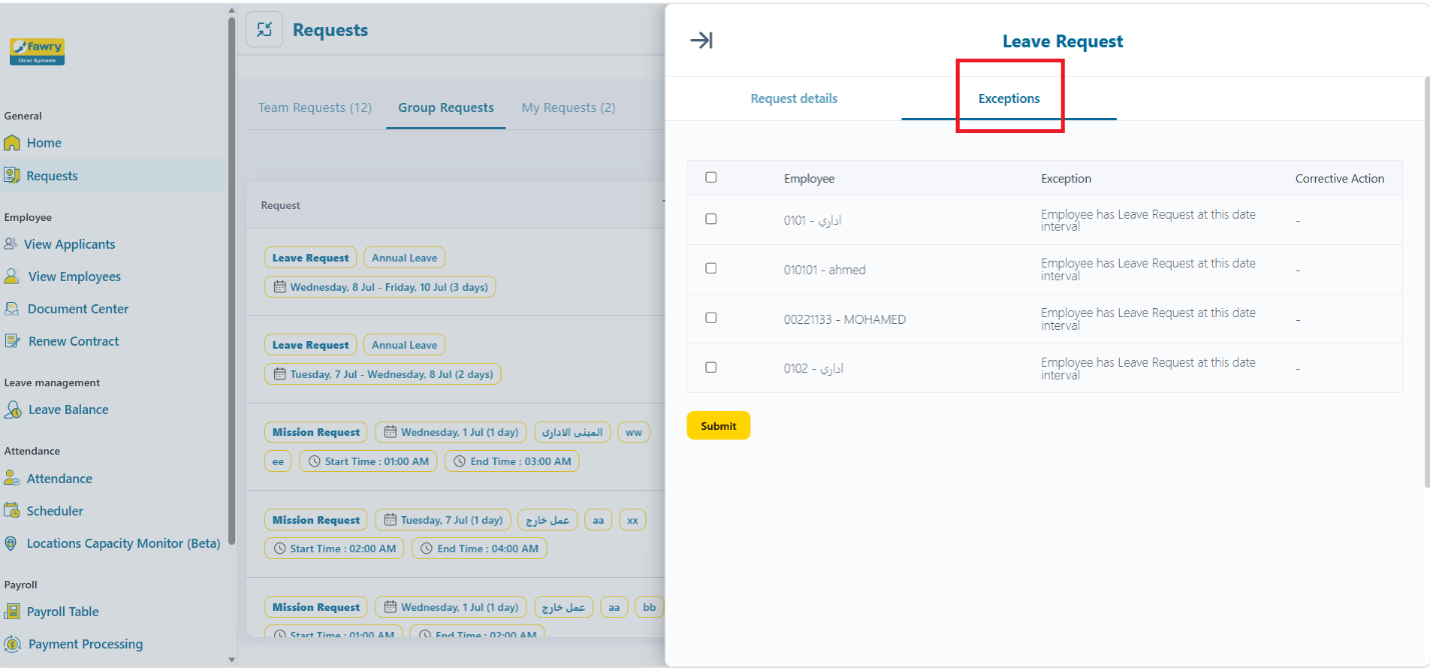 Select the employees you want to correct, click Correct and make the necessary changes.
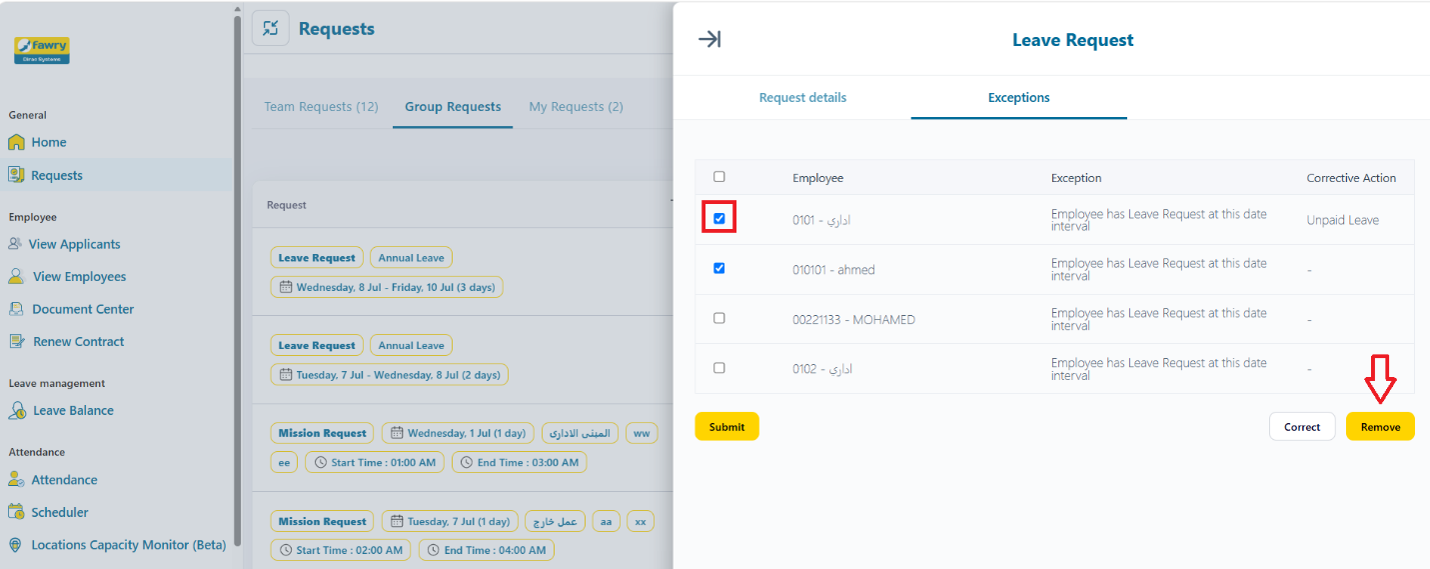
Alternatively, select the employees you want to remove, then Click remove.
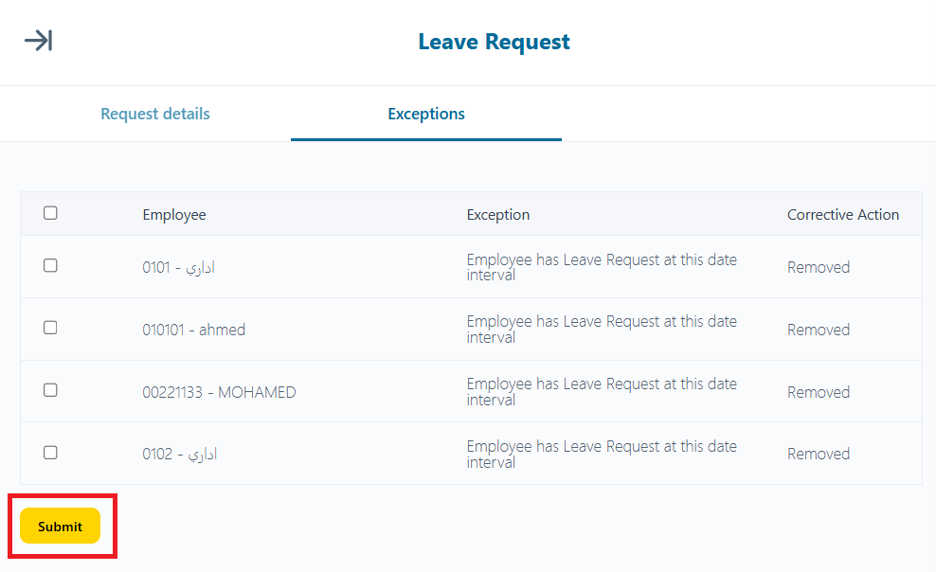
 Once exceptions are cleared, click submit button to finish your group request.
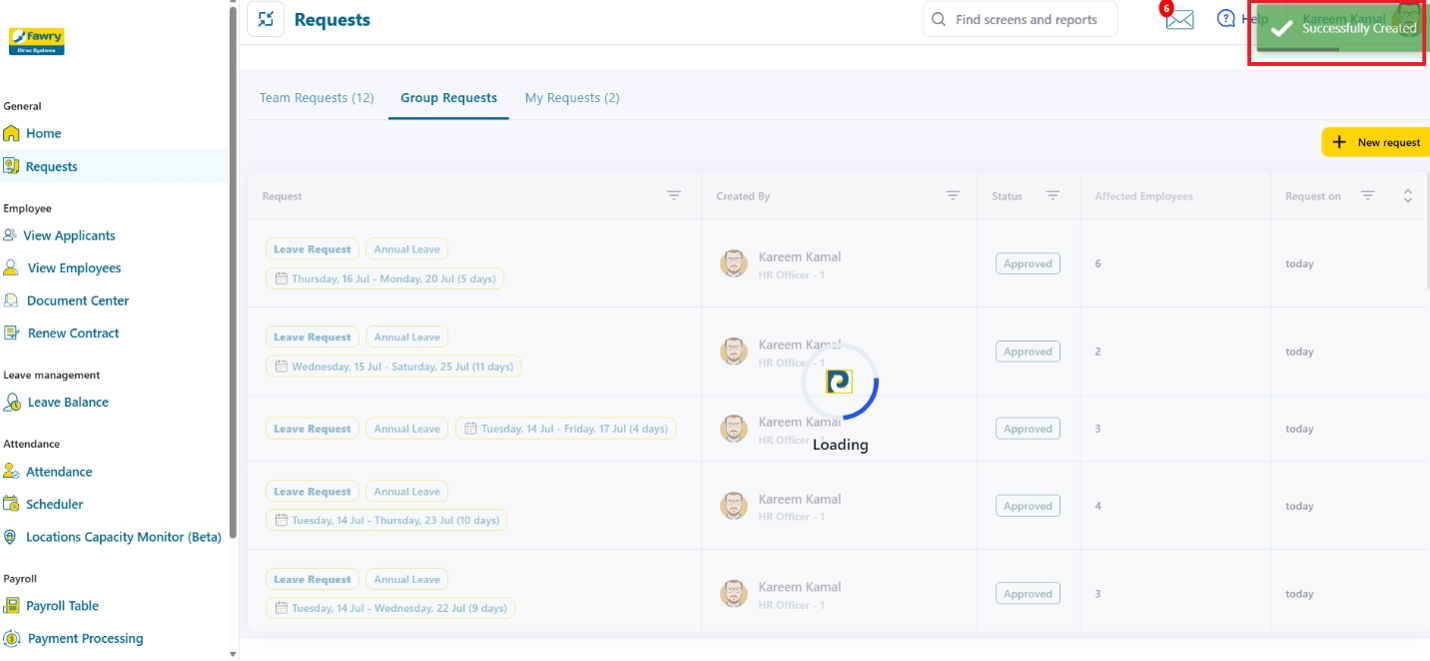
 Confirmation:
A success message will appear confirming that the group request has been submitted successfully.
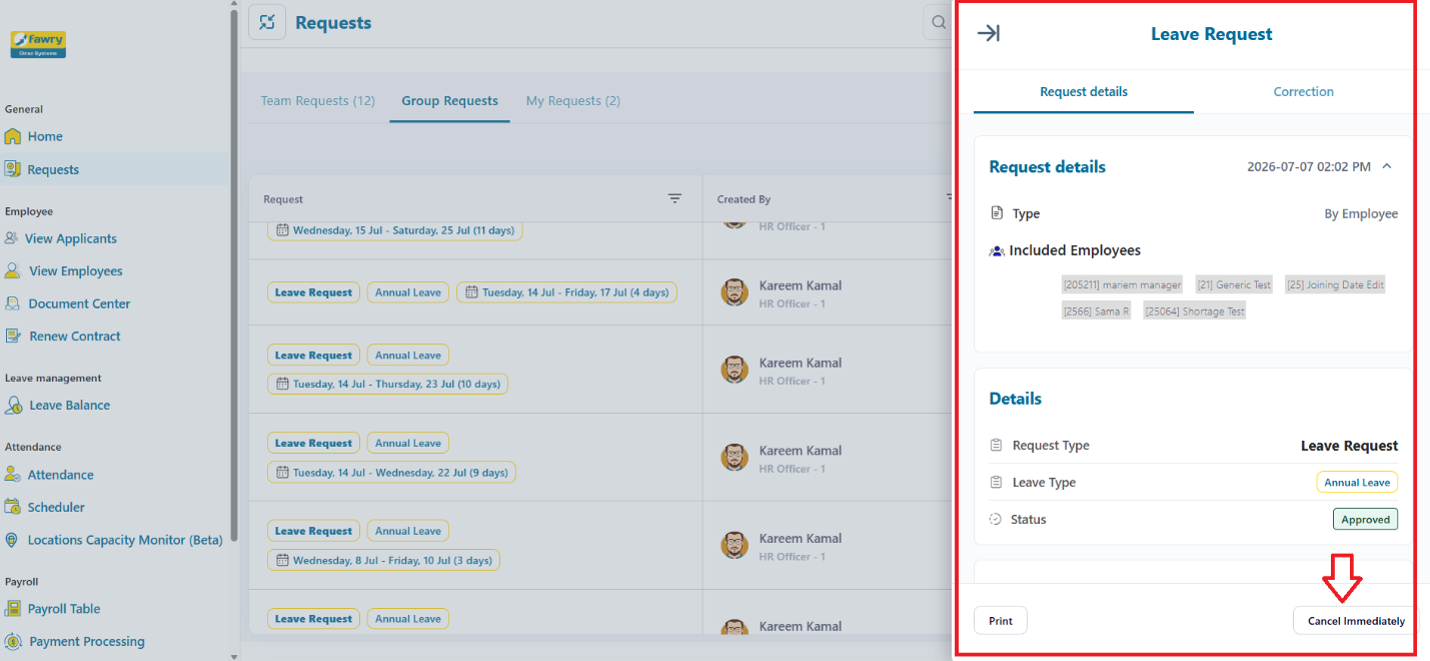
 You can open submitted requests to review details and corrections within the submitted group request, also you can cancel the submitted request by clicking on “Cancel Immediately”.
 You have successfully created a group request for multiple employees in the system.